
"Your streaming infrastructure is only as secure as your account protection."
Protecting your StableKit account is essential for safeguarding your streaming infrastructure, connected platform credentials, and broadcast reputation. This guide covers how to monitor your account security, manage active sessions, and respond to potential security incidents.
Managing Active Sessions
StableKit allows you to view all devices and browsers currently logged into your account. This is a powerful security feature that helps you detect unauthorized access.
Viewing Your Active Sessions
- Navigate to your profile settings
- Look for the "Active Sessions" section
- Review the list of all currently active sessions
Each session entry typically shows:
- Device/Browser: The type of device or browser used
- IP Address: The session IP address
- Date: When the session was created
- Current Session: Indicates which session you're currently using
Terminating Suspicious Sessions
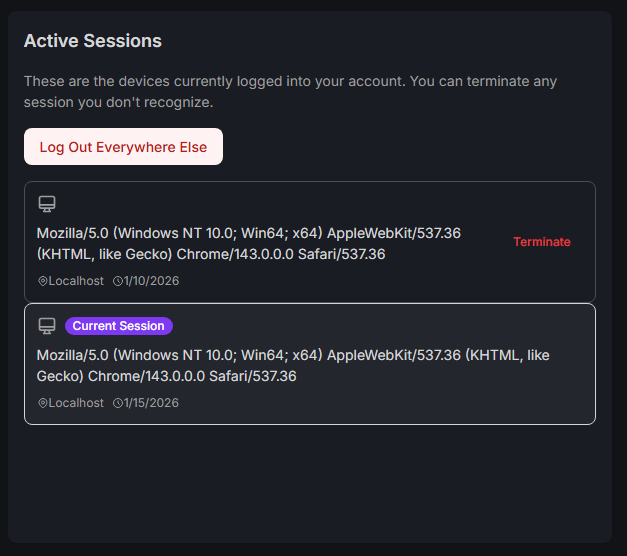
If you see a session you don't recognize, you can terminate it immediately. Click the "terminate" button next to any session to revoke its access.
Terminating a session forces that device to log in again, which they cannot do without your password.
What to Do If You See an Unknown Session
Discovering an unrecognized session is a serious security concern. Someone may have accessed your account without authorization. Follow these steps immediately:
Step 1: Terminate All Unknown Sessions
First, revoke access from any sessions you don't recognize. You may also want to use "Logout All Sessions" if available, then log back in on your trusted device.
Step 2: Change Your StableKit Password
Immediately change your password to something strong and unique. Use a combination of uppercase, lowercase, numbers, and symbols. Consider using a password manager to generate and store secure passwords.
Step 3: Reset Your Connected Platform Stream Keys
This is critical: If someone had access to your StableKit account, they could have viewed your connected Twitch and YouTube stream keys through the Virtual OBS feature. Even though you've secured your StableKit account, they may have copied these keys.
- Twitch: Go to Creator Dashboard > Settings > Stream > Reset your Primary Stream Key
- YouTube: Go to YouTube Studio > Go Live > Stream Settings > Reset your Stream Key
After resetting your platform stream keys, update them in StableKit to ensure your broadcasts continue working.
Step 4: Review Recent Activity
Check your streaming platforms (Twitch, YouTube) for any unauthorized broadcasts or changes to your channel settings. Also review any changes to your StableKit configuration.
Step 5: Secure Your Email
If someone accessed your StableKit account, they may have also compromised your email. Change your email password and enable two-factor authentication if you haven't already.
What to Do If Your Ingest Stream Key is Leaked
If you accidentally shared your ingest stream key publicly (in a stream, screenshot, or post), or suspect it has been compromised, take action immediately to prevent unauthorized streams to your ingest.
Immediate Action: Delete the Compromised Ingest
- Navigate to your ingest dashboard in StableKit
- Find the compromised ingest
- Click the settings option
- Select "Delete Ingest" to permanently remove the ingest
Create a New Ingest
After deleting the compromised ingest, create a new one with fresh credentials. Update your streaming software (OBS, etc.) with the new ingest URL and stream key.
Proactive Security Best Practices
Use Strong, Unique Passwords
Your StableKit password should be unique and not used for any other service. If one service is breached, your other accounts remain secure.
Be Careful When Screen Sharing
When streaming or screen sharing, be cautious about showing:
- Your StableKit dashboard (which may show stream keys)
- OBS settings (which contain ingest URLs and keys)
- Any configuration files with credentials
Regularly Review Active Sessions
Make it a habit to check your active sessions periodically, especially if you've logged in from public or shared computers.
Log Out from Shared Devices
If you ever log into StableKit from a device that isn't yours (hotel computer, friend's laptop, etc.), always log out when finished and consider terminating that session from your trusted device afterward.
Keep Your Ingest Keys Private
Treat ingest stream keys like passwords. Never share them in public chats, streams, or social media. If you need to share access with a collaborator, use StableKit's ingest sharing feature instead of sending the key directly.
Conclusion
Account security is an ongoing responsibility. By regularly monitoring your active sessions, knowing how to respond to security incidents, and following best practices, you can protect your StableKit account and streaming infrastructure. If you suspect your account has been compromised, act quickly - the faster you respond, the less damage can be done.